> ## Documentation Index
> Fetch the complete documentation index at: https://docs.gratero.com/llms.txt
> Use this file to discover all available pages before exploring further.
# Workspace setup
> Set up your Gratero workspace for daily execution.
**Before you begin**:
* Ensure you have admin access in Gratero.
* Keep your carrier credentials and warehouse details ready.
* Align your support team on communication channels.
Use this guide to build a clean foundation before you start processing live orders.
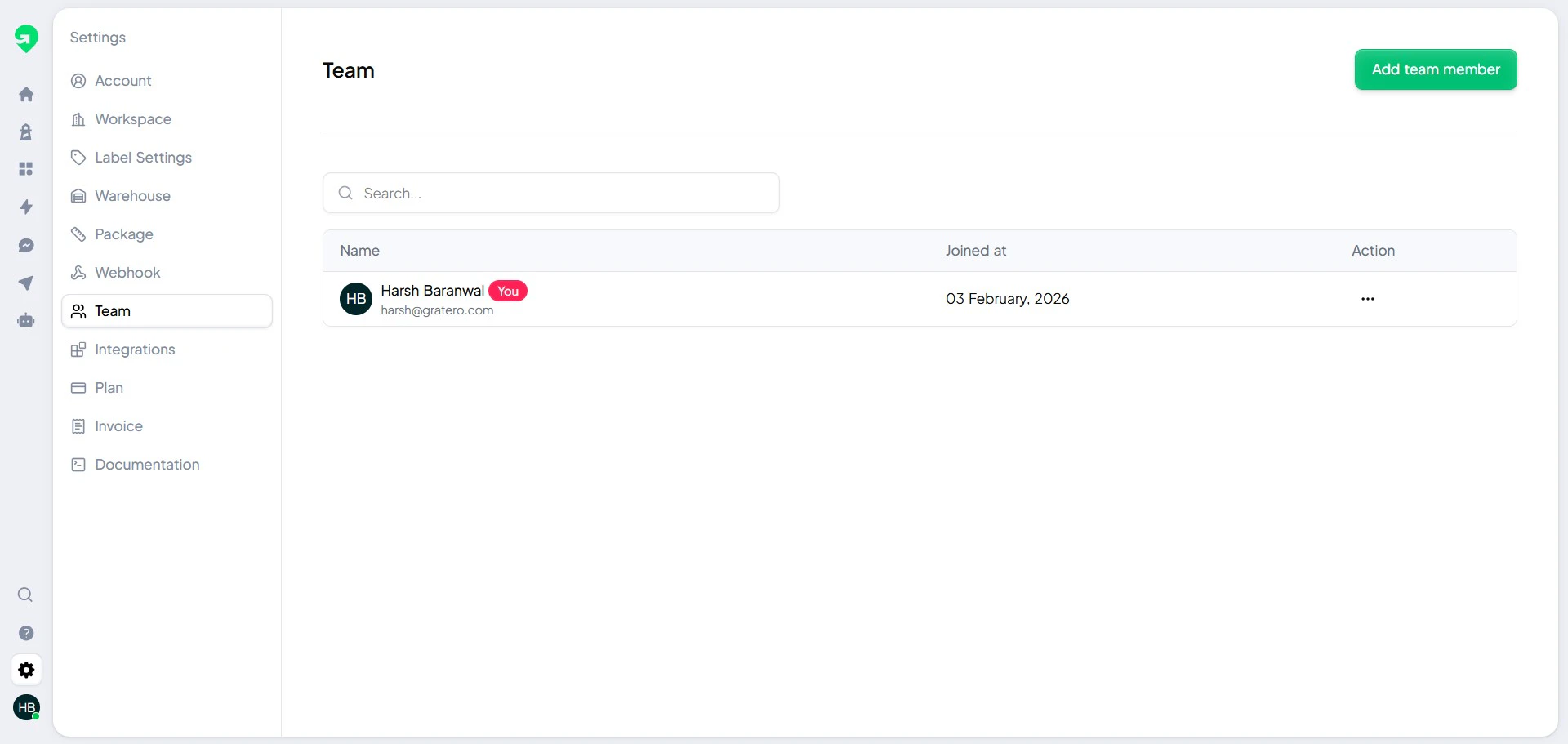
Add your operations, support, and manager users so ownership is clear from day one.
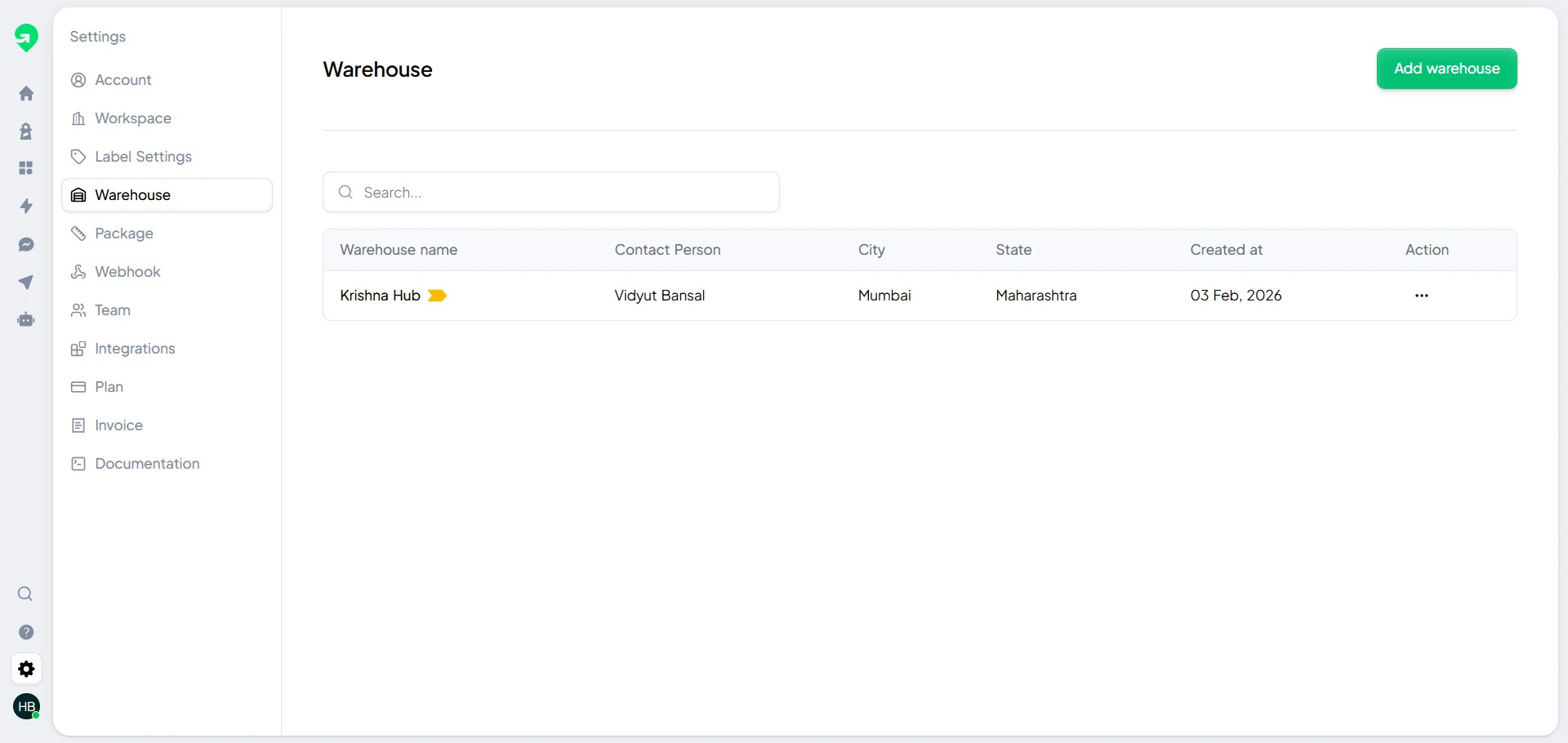
 Add pickup locations and verify complete address and contact information.
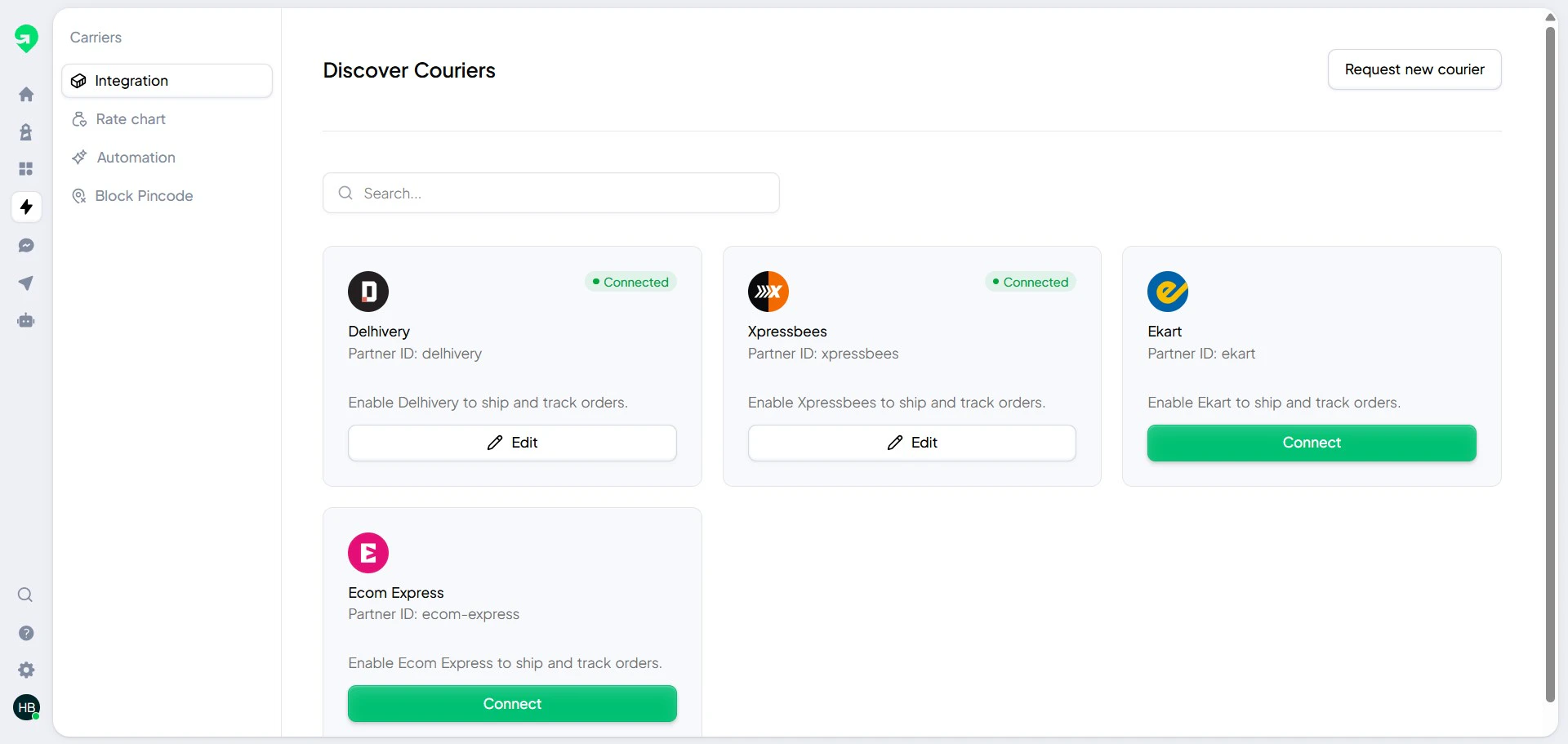
 Add all active carrier accounts and confirm service availability.
 ## Serviceability protection
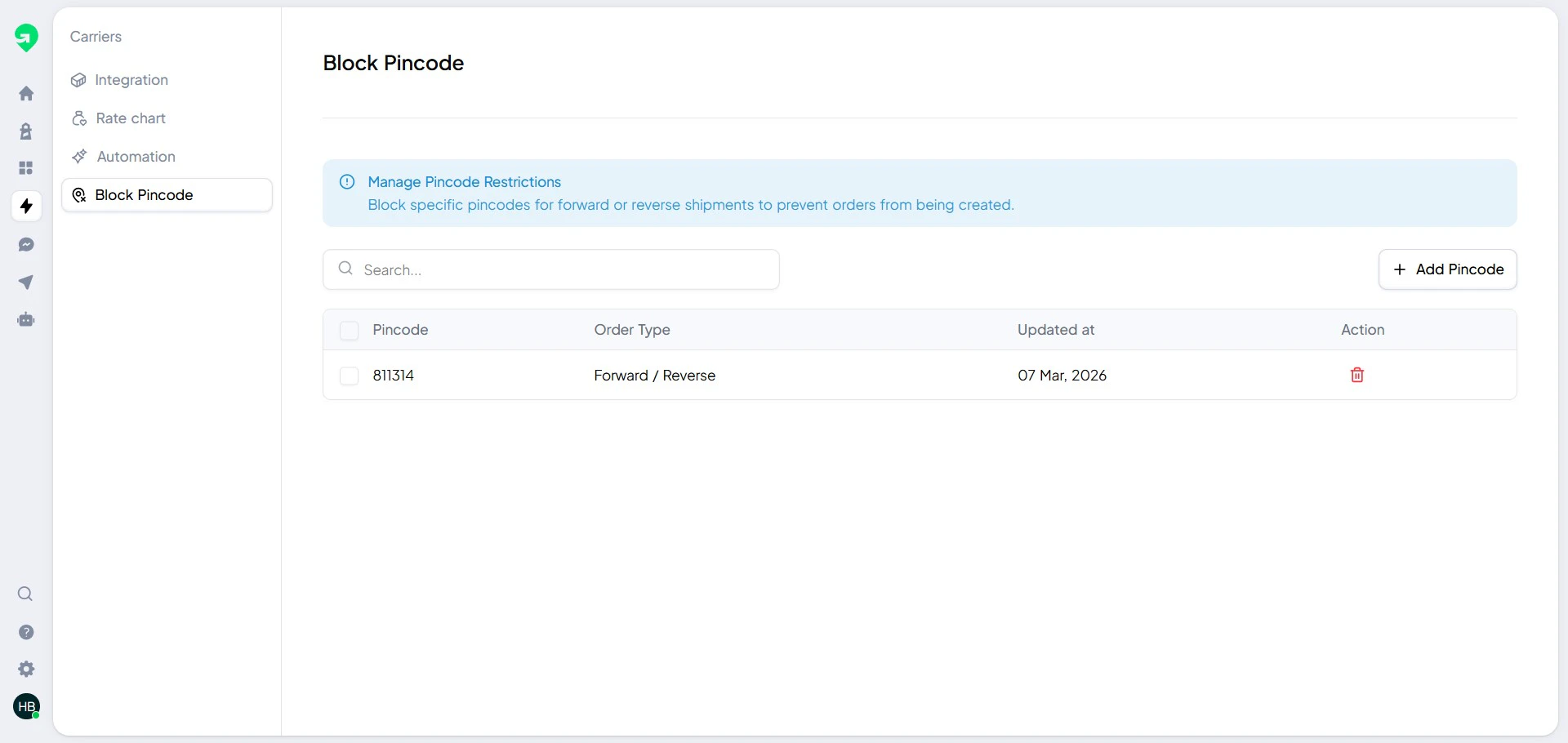
Block known non-serviceable or high-risk pin codes to reduce return and exception rates.
## Serviceability protection
Block known non-serviceable or high-risk pin codes to reduce return and exception rates.
 ## Troubleshooting
Confirm that:
1. At least one warehouse is active.
2. At least one carrier is connected.
3. Your order destination pin code is not blocked.
Check that channel credentials are valid and templates are published.
Then run a test message from your notification settings.
## Troubleshooting
Confirm that:
1. At least one warehouse is active.
2. At least one carrier is connected.
3. Your order destination pin code is not blocked.
Check that channel credentials are valid and templates are published.
Then run a test message from your notification settings.