> ## Documentation Index
> Fetch the complete documentation index at: https://docs.gratero.com/llms.txt
> Use this file to discover all available pages before exploring further.
# Notifications
> Set up customer communication channels and delivery alerts.
Use notifications to proactively inform customers and reduce failed delivery attempts.
## Notification center
Manage all delivery communication from one place.
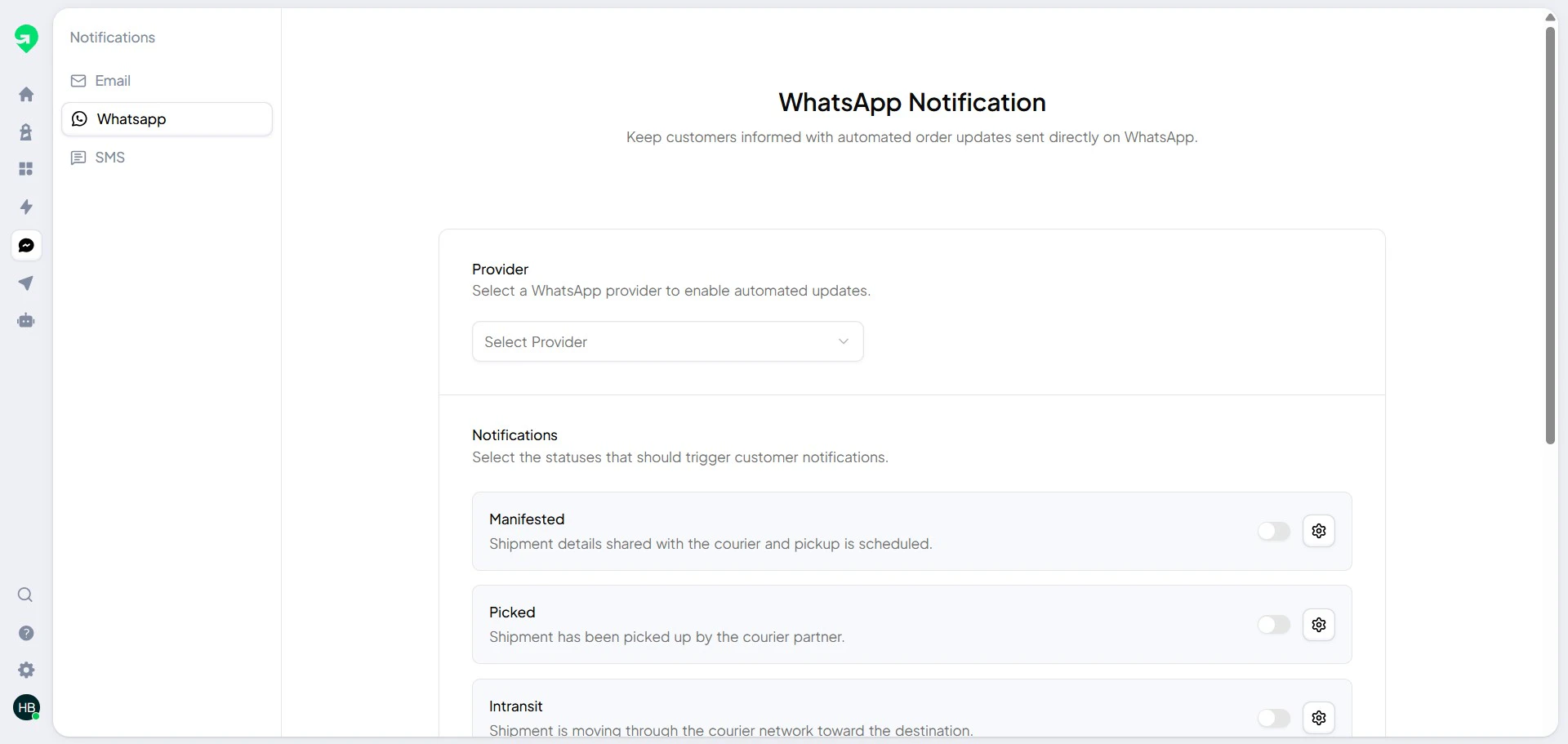 ## Channel popup and trigger selection
Use the channel popup to choose message types and trigger points.
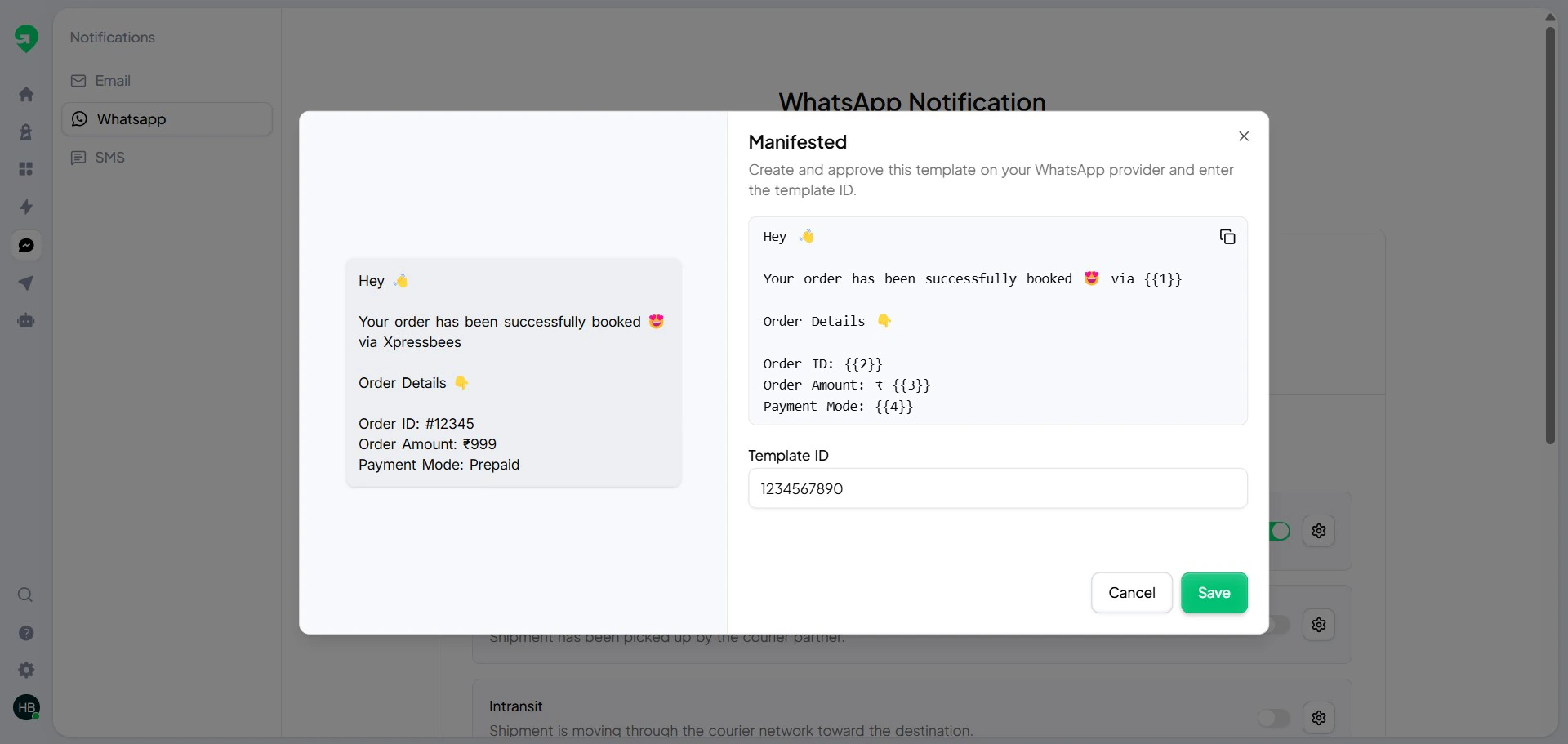
## Channel popup and trigger selection
Use the channel popup to choose message types and trigger points.
 ## Best practices
* Send order confirmation immediately after shipment creation.
* Add out-for-delivery and failed-attempt notifications.
* Keep templates short, clear, and action-focused.
* Include branded tracking page links whenever possible.
## Validation checklist
Before publishing:
1. Verify each template has the correct variable mapping.
2. Send test messages to internal numbers/emails.
3. Confirm every trigger is active in the expected order flow.
## Best practices
* Send order confirmation immediately after shipment creation.
* Add out-for-delivery and failed-attempt notifications.
* Keep templates short, clear, and action-focused.
* Include branded tracking page links whenever possible.
## Validation checklist
Before publishing:
1. Verify each template has the correct variable mapping.
2. Send test messages to internal numbers/emails.
3. Confirm every trigger is active in the expected order flow.