> ## Documentation Index
> Fetch the complete documentation index at: https://docs.gratero.com/llms.txt
> Use this file to discover all available pages before exploring further.
# Labels and manifests
> Generate, preview, and validate shipping labels.
Use this guide to verify labels before dispatch and avoid downstream delivery issues.
## Label generation
Generate labels from eligible orders once warehouse and carrier mapping is complete.
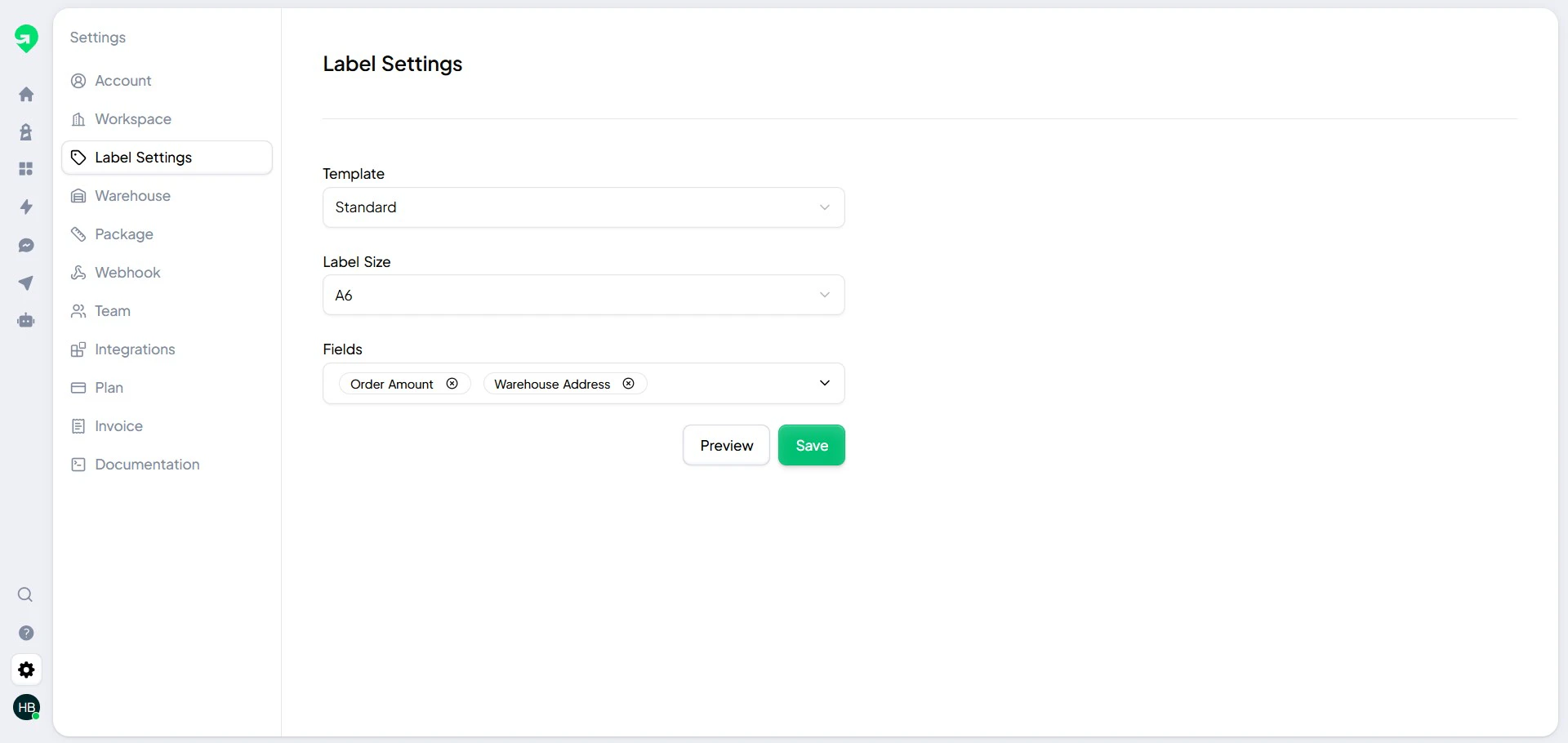 ## Label preview and QA
Always open label preview before you print in bulk.
## Label preview and QA
Always open label preview before you print in bulk.
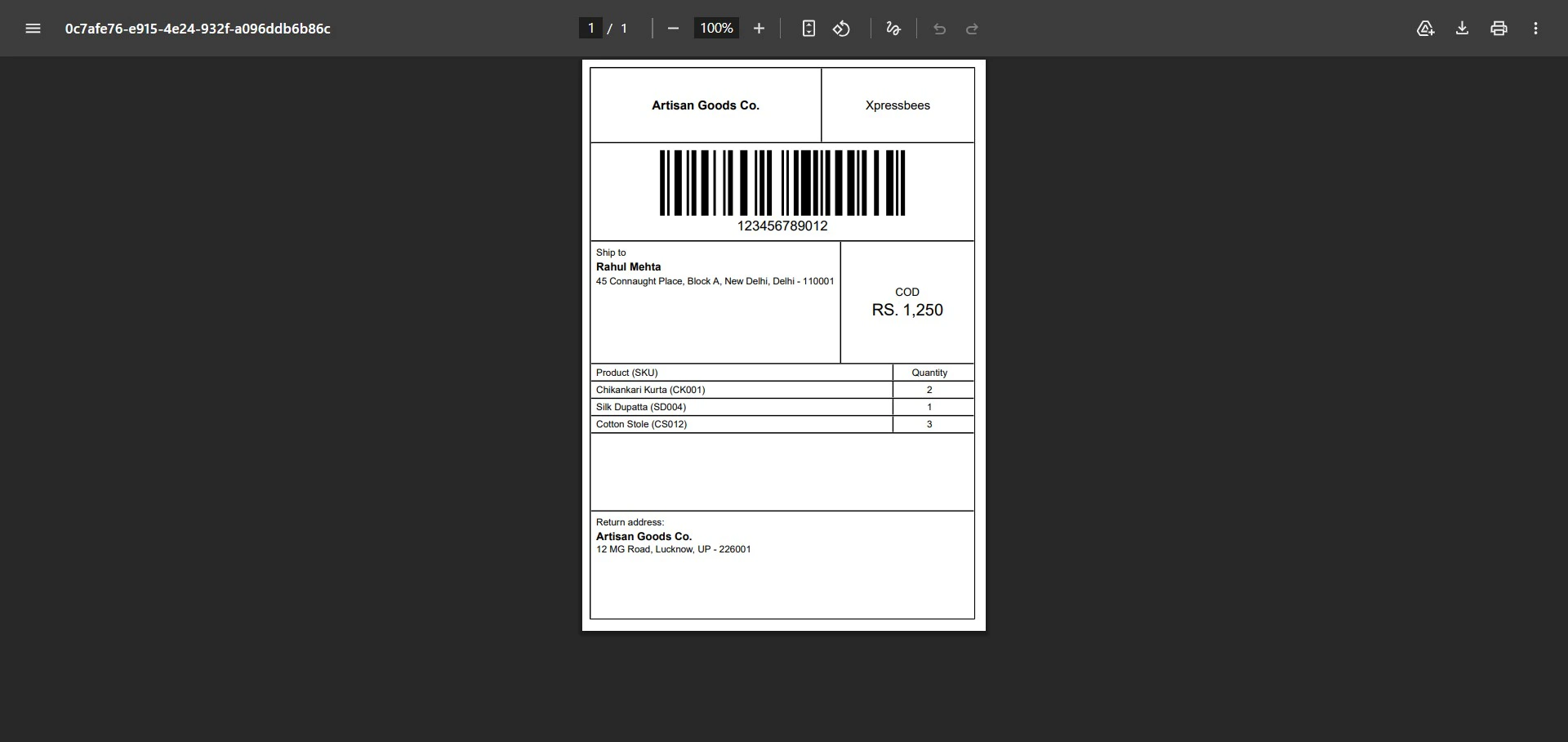 ## Validation checklist
Before printing:
1. Verify customer name and full address.
2. Verify carrier and service type.
3. Verify pickup warehouse mapping.
4. Confirm barcode is visible and not clipped.
Run a single-sample print first whenever you update label templates or printer settings.
## Validation checklist
Before printing:
1. Verify customer name and full address.
2. Verify carrier and service type.
3. Verify pickup warehouse mapping.
4. Confirm barcode is visible and not clipped.
Run a single-sample print first whenever you update label templates or printer settings.